
How well AI performs a task depends largely on what information it receives and in what form. The relationships between data – what belongs to which topic and what kind of relationship it is – are usually known only to the user. In digital tools, they are generally not recorded.
The Context Manager closes this gap: it brings together the data of a topic from different applications, supplemented by the user’s knowledge, makes it available to the AI, and files the AI’s results back in the topic.
This article illustrates this with a demo example: how context is created from different sources, how user and AI work with it together, and how new data from the AI flows back into the context. Why context matters for work is described in the blog post Context-Driven Working. The technical solution is presented in the blog post From Data to Usable Context.
Short on time? Skip to the conclusion.
The starting point: relationships that exist only in the user’s mind
Knowledge consists not only of data but also of the relationships between them. These relationships exist in the user’s mind, but not in the digital world. Each application manages its own data and needs little knowledge of other applications and their data to do so. Until now, this was sufficient for these tools.
AI, by contrast, understands content and can work across application boundaries. For this, it is not enough to provide individual pieces of data in isolation. The environment of the data, its context, becomes a decisive factor. Today, this context is still supplied by the user: they gather related data, explain the relationships where necessary and then file newly created data in the right place, typically in a local directory or in cloud storage.
Analogy: A familiar example from any email program shows how it can work differently. To reply to an email, you click “Reply”: recipient, subject, and previous messages are already filled in, and the reply is added to the existing conversation. Nobody gathers the history for this or files the reply manually afterwards: the email program knows and manages the relationship itself and takes this work off the user’s hands.
The Context Manager extends this principle beyond the boundaries of a single application. The conversation is replaced by a topic. It can comprise any data from different applications, regardless of type – emails, notes, tasks, files or others – supplemented by relationships that only the user knows.
One gap, three interfaces
The Context Manager connects user, applications, and AI, each via its own interface:
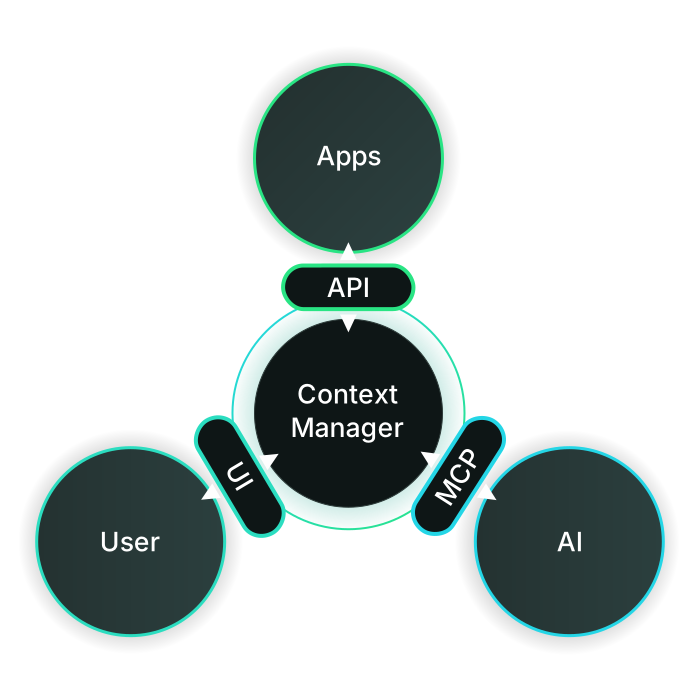
The Context Manager connects user, applications, and AI, each via its own interface.
The context manager does not replace any of these sides. Editing and storing data, such as messages, documents, and spreadsheets, remains with the applications. The role and scope of the AI also remain unchanged. The context manager maintains the relationships between the sides and connects them.
The example: one topic, spread across several sources
The example comes from the preparation of an insurance offer. An insurance advisor has sent a corporate client questionnaires that the advisor needs for the offer. In this example, the user is the corporate client.
The related data is stored with the user in different sources: an email conversation with eight emails and their attachments, including the questionnaires as PDFs, as well as further PDF files in two folders of the file storage. In total, the topic comprises 42 elements and 42 connections between them.
The AI is to capture the context, load one random email as an example, summarize the context, and file the summary in the topic. Without the Context Manager, the user would have to gather the data themselves, pass it to the AI, and explain how it is related. They would then have to file the result themselves. The following sections show the same process with the Context Manager.
The foundation: how context emerges from distributed data
Data enters the Context Manager in two ways:
Assigning data to the right topic
The Context Manager assigns new data from outside to the right context via known connections. In addition, two functions are available: Auto-Assign assigns new data to an existing, matching topic; Auto-Cluster forms new topics from related data. Both work across applications and regardless of data source and data type. The user does not need to do anything for this.
In the example, the Context Manager combined the various data from different sources into a common topic, created the topic, and linked the relevant data to it. Our user’s knowledge had already been incorporated: they had filed the documents in two folders and thereby recorded what belongs together. The Context Manager picks up this structure and thus finds the right topic.
Reviewing suggestions and adding knowledge
The results of Auto-Assign and Auto-Cluster are initially suggestions. The user can accept, reject, or edit them. This is where the user's knowledge comes in: by assigning missing data to the topic, they capture relationships the system cannot detect.
In general: The Context Manager synchronizes data from the connected applications and continuously tries in the background to find matching topics or form new ones. The user reviews the suggestions and adds their knowledge.
In the example, our user reviewed the suggestions and, since they fit, left them unchanged. Adding further elements to the context was not necessary, but would have been possible at any time.
Note: The Context Manager distinguishes between two types of connections. Some result from the sources themselves, such as the emails of a conversation or the files in a folder. Others do not result from the sources but are created on behalf of the user, either by the Context Manager or by the user. In the screenshot of the AI chat, these are labeled “user-defined”. In the example, these are the three connections of the topic to the conversation and the two folders. Independently of this, automatically created connections remain marked as such until the user explicitly confirms them.
The Knowledge Map supports the user and makes relationships visible and traceable. It shows the data of a topic and its connections. The term Knowledge Graph is also common instead of Knowledge Map; both refer to the same thing.
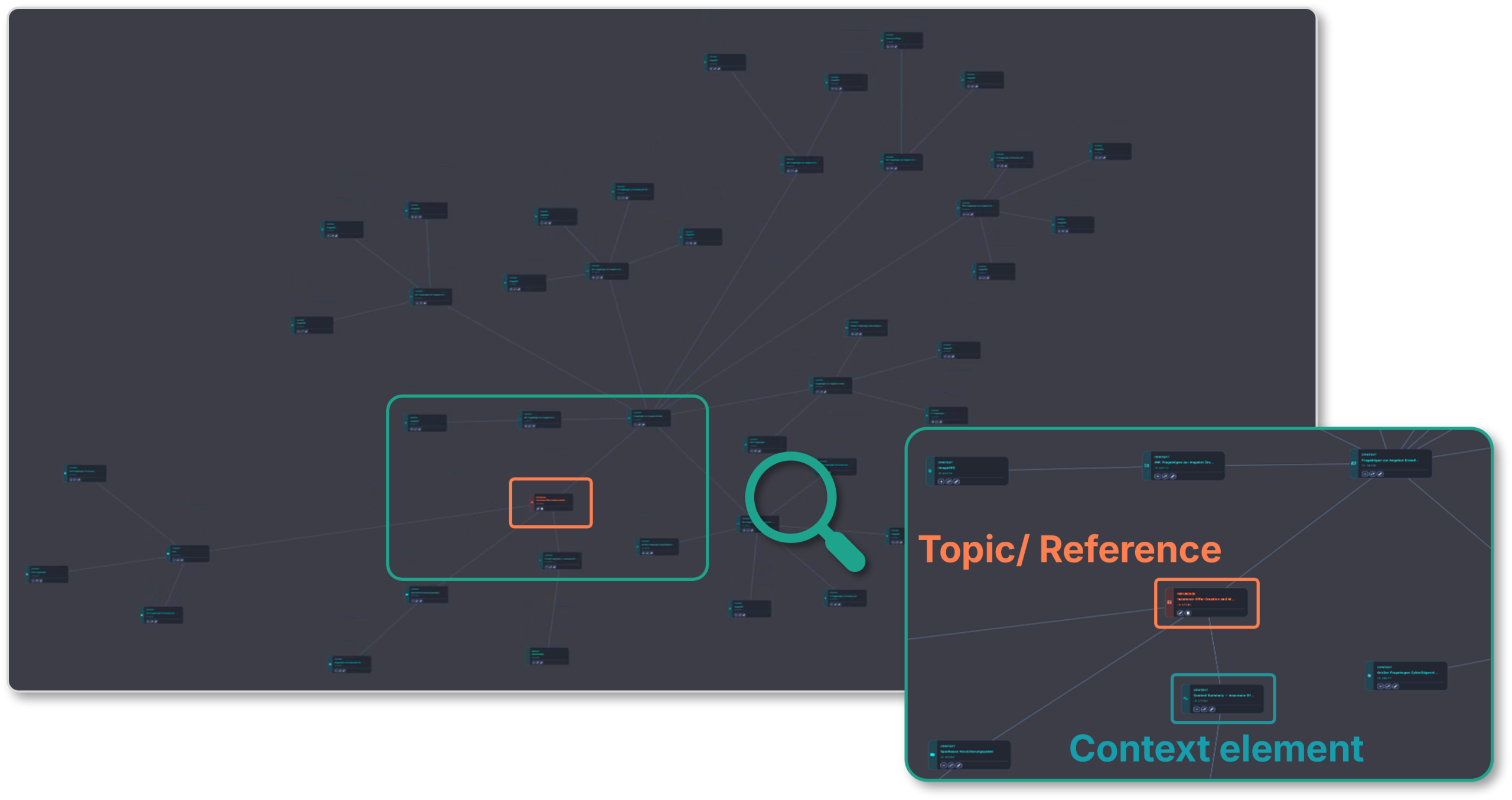
The Knowledge Map of the topic: the overview shows all elements and their connections. The detail shows the topic as reference and context elements linked to it; one of them is highlighted as an example.
The benefit: how user and AI work in the same context
The following example and screenshot show four functions: capturing context, loading data, summarizing, and filing.
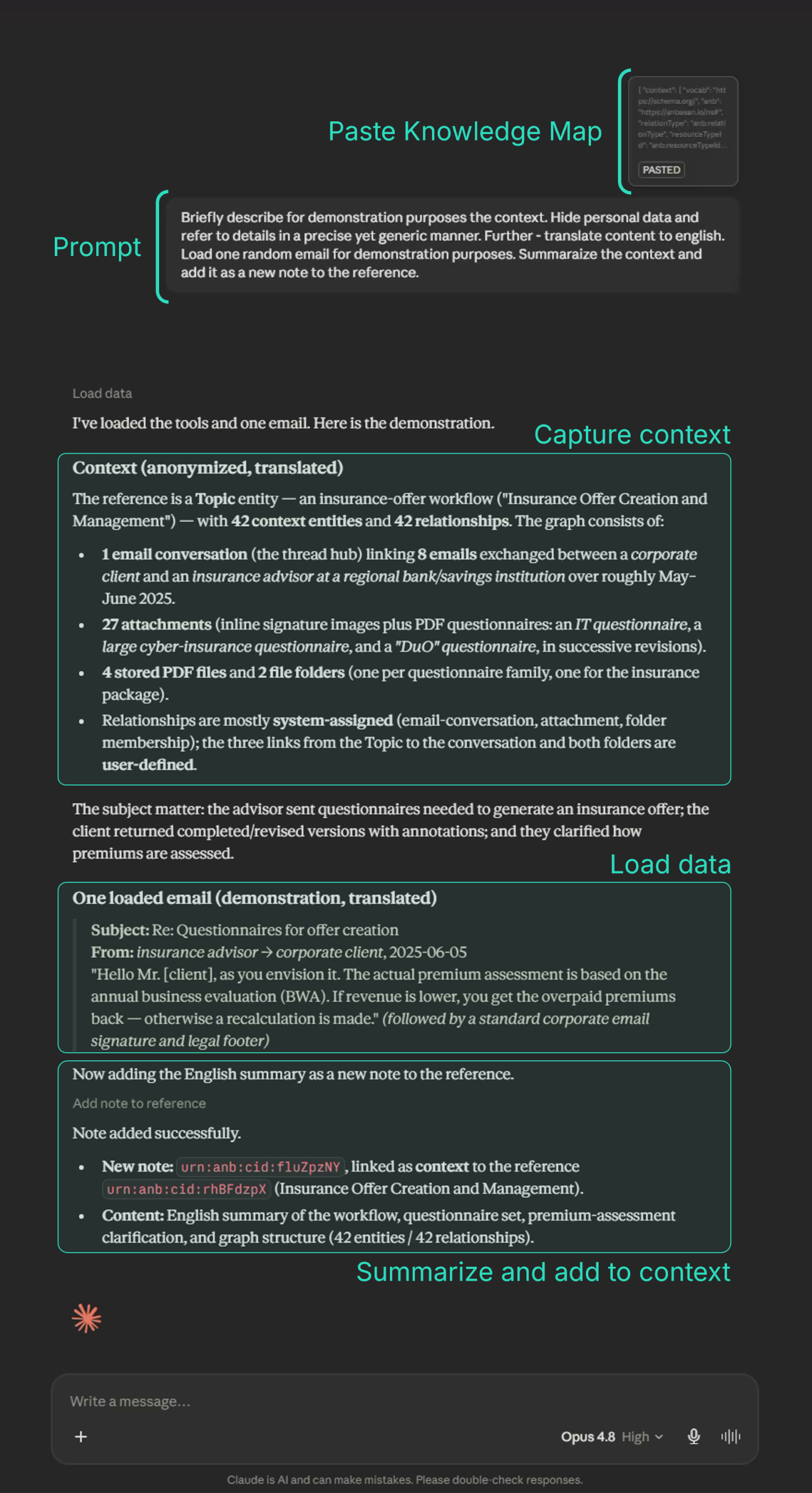
The Knowledge Map was inserted into the prompt (visible above the prompt). The AI captures the context based on the Knowledge Map and then, as requested, loads one randomly selected email as an example. Finally, as instructed, the AI creates the summary as a note and links it to the topic.
The AI captures the context
The AI also needs a reference that indicates what it is about. When replying to an email, this is the conversation; in the example, it is the topic.
Instead of searching for the data individually and pasting it into the AI chat, our user copies the topic’s Knowledge Map to the clipboard and pastes it into the AI chat. For the AI, it is available as a text document that references the topic’s data and describes how they are connected. It is the topic in a form that can be handed over to the AI.
In the prompt, our user describes the task: describe the context, load one random email as an example, summarize the context, and file the summary as a note in the topic. For the example, the AI is also to hide personal data and translate the content into English.
Analogy: This corresponds to the “Reply” button in the email program: the Knowledge Map takes on the role of the conversation, the prompt that of the button. The principle is the same, namely performing a task in a defined context. The difference lies in flexibility: the button triggers exactly one predefined action, while the prompt describes a freely worded task.
The AI loads data and summarizes
Based on the Knowledge Map, the AI captures the context: the topic, its 42 elements and their connections. The Knowledge Map contains further information about the connections, which the AI incorporates into its description of the context.
It then independently loads one email from the conversation as an example. In this case, it concerns how the premium is determined. Finally, the AI summarizes the context.
In general: The AI can be supplied with context in two ways: with individual data as a reference or, as in the example, with the data and its context. In both cases, the AI can retrieve context, search it, and load data.
Results flow back
The summary is newly created information. Just as a reply ends up in the existing conversation, it is assigned to the topic: the AI creates it as a new note and links it to the topic as context. The summary is thus part of the topic and available for further tasks.
In general: The Context Manager works in both directions. Data created in the context is filed appropriately in the connected applications. A new email is created as a new conversation or continues an existing one. Files are stored in a default directory and can be moved from there without losing their context.
Conclusion: how work becomes easier for the user
In the example, our user used the context created automatically in the background, pasted it into the AI chat as a Knowledge Map, and described the task. Capturing context, loading data, summarizing, and filing were handled by the AI and the Context Manager. The comparison shows the differences:
Step / Task
Without Context Manager
With Context Manager
Gathering data
The user searches for emails, attachments, and files in the email client and file storage.
The Context Manager assigns them; the user adds further links.
Explaining relationships
The user explains them in the prompt for each task.
They are recorded in the topic and captured in the Knowledge Map.
Passing data to the AI
The user copies the content piece by piece into the AI chat.
The user pastes the Knowledge Map; the AI loads the content itself.
Filing the result
The user files it in the appropriate application.
The AI files it autonomously and links it to the topic.
The user’s role thus focuses on the substantive questions – what should be done and how – and less on collecting and filing data.
Get in touch
Context Management continues to evolve, and we welcome a professional exchange on the topic. Follow ānbāsan on LinkedIn and join the discussion, or write to us directly at contact@anbasan.com.